Loading
Reading gpu-auth.json…

OctaSpace deployment guide

Deploy Presearch Vector workloads on authorized machines.
Purpose
This page explains how to deploy a Docker container on OctaSpace to process workloads for Presearch Vector NFTs. The deployment is security-restricted and designed to run only on approved machines that meet Vector node requirements.
The container manages one or more Presearch Vector NFT tokens, runs workloads on available GPUs, tracks daily progress, and exits after the configured minimum threshold is reached. Multiple tokens can be processed by one deployment. Workload behavior and completion time can vary depending on the specific machine, including GPU and CPU performance, as well as the particular workload bucket being processed. The 2–8 hour estimate is therefore only a rough planning estimate.
Deployment configuration
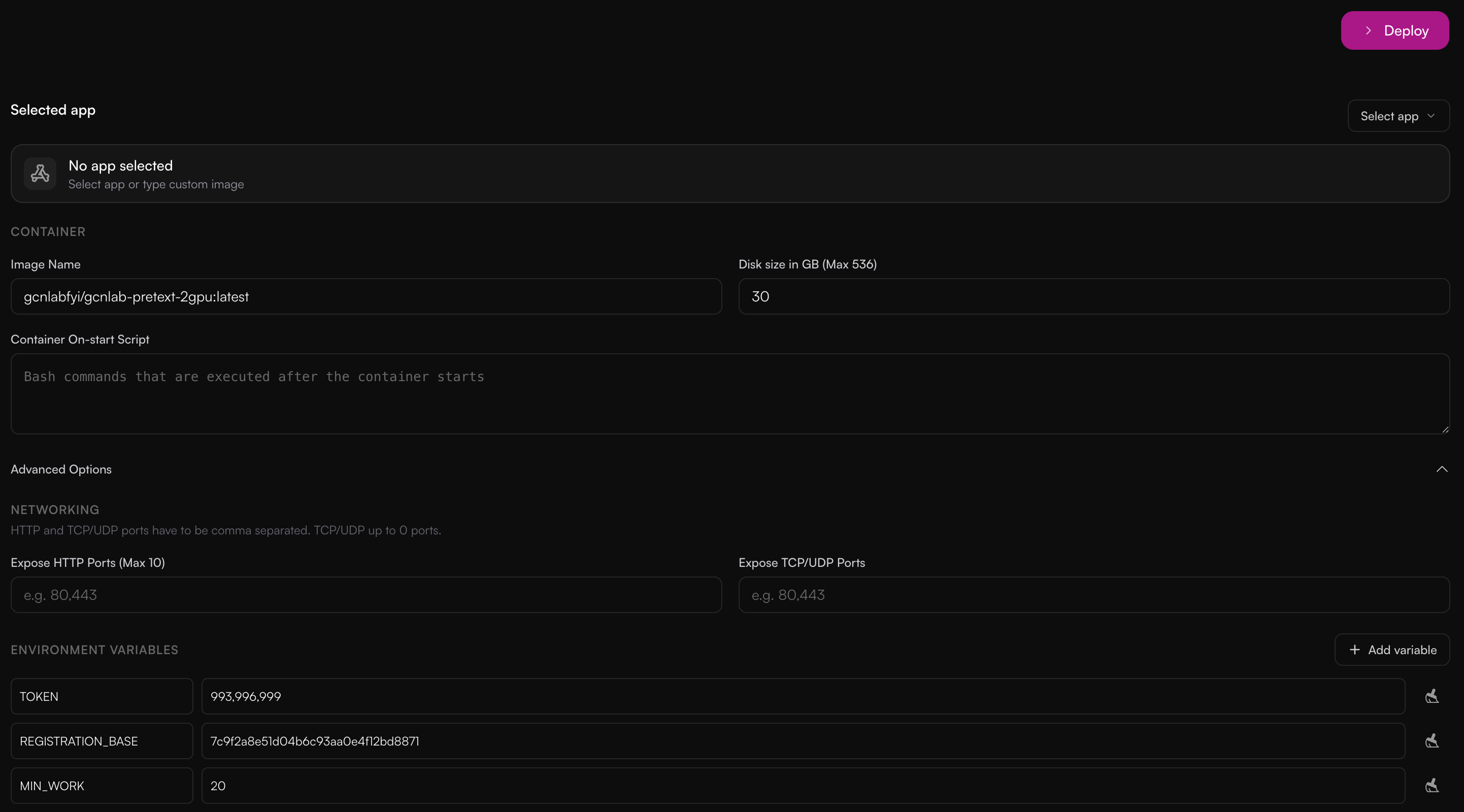
Enter the image name and environment variable names exactly as shown. Paste your own values into the value column in OctaSpace Cube.
In OctaSpace Cube, first look for an available machine whose node ID appears in the authorized list above. Do this before entering deployment details.
Select a custom image, paste the image name exactly as shown, and set disk size.
gcnlabfyi/gcnlab-pretext-2gpu:latest
30 GB
30 GB unless you have a specific reason to change it.
Add these variable names exactly as shown.
TOKEN
One token ID, or multiple token IDs separated by commas.
REGISTRATION_BASE
Your registration ID without the machine and worker suffix. The container appends the authorized node ID and worker suffix automatically.
MIN_WORK
Minimum daily MTD target per token. Usually 20.
By default, the container exits after the configured minimum MTD is completed and the OctaSpace deployment normally ends.
EXIT_WHEN_COMPLETE
Optional. Set to false to keep the container active after the
minimum MTD is reached, so it can process again in the next UTC work round.
After confirming the machine, image name, and environment variables, click Deploy in OctaSpace Cube.
After deployment
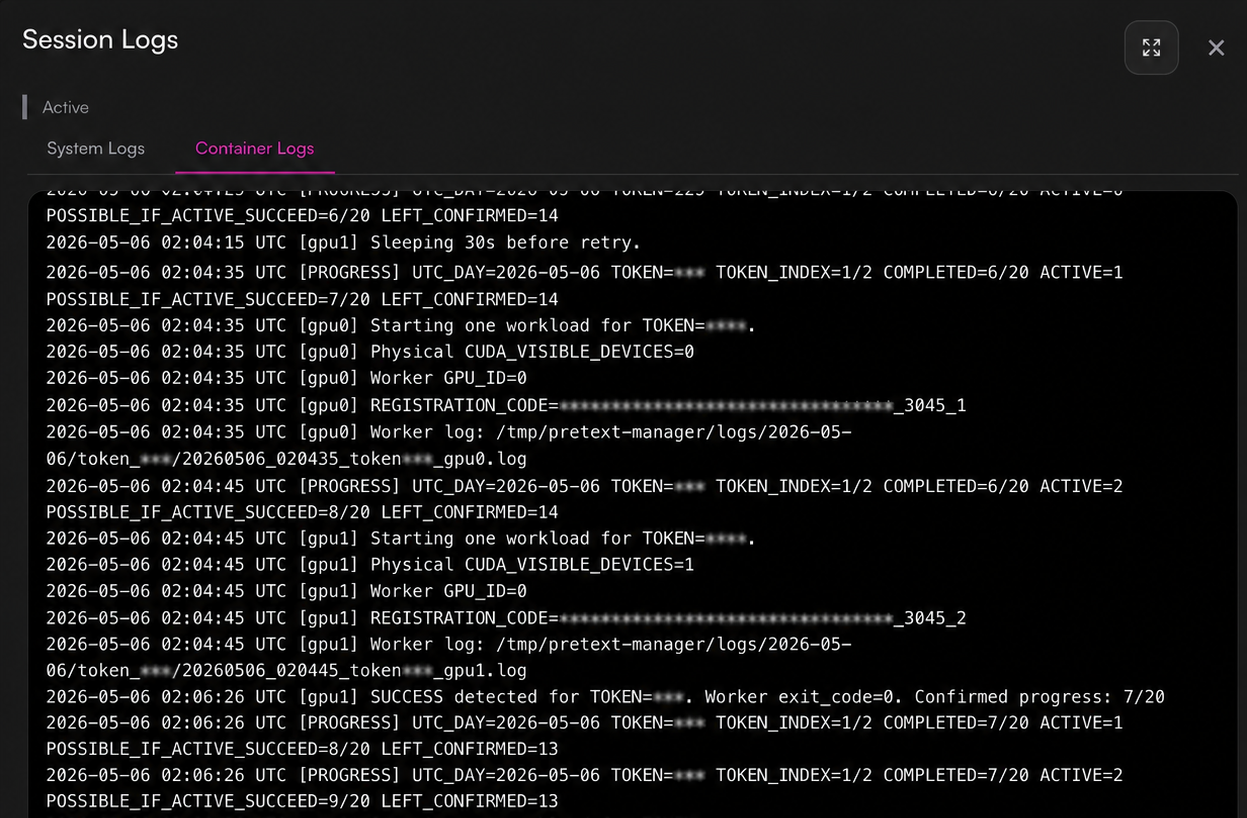
Logs should confirm authorization, token progress, GPU assignment, and registration codes.
Operating rules
Daily progress is tracked using UTC day boundaries. A new work round begins with each new UTC day.
One deployment can process one token or multiple tokens. When multiple tokens are provided, the manager rotates between them according to current progress.
After all configured tokens reach the MTD threshold for the current UTC day, the manager stops launching new work.
By default, EXIT_WHEN_COMPLETE=true. The container exits cleanly
after all tokens reach the configured minimum MTD.
EXIT_WHEN_COMPLETE=false
to keep the container alive after today’s minimum MTD is completed. It will restart
processing after the next UTC day begins.
Legal notice
All GCNLab information, services, instructions, endpoints, deployments, validators, providers, and related materials are provided on an “as is,” “as available,” and “use at your own risk” basis. GCNLab makes no warranties or guarantees regarding availability, performance, rewards, profitability, accuracy, security, compatibility, or continued operation.
Users are solely responsible for their own configurations, accounts, keys, tokens, funds, deployments, delegations, staking decisions, costs, losses, missed rewards, downtime, third-party service issues, and any other consequences of using GCNLab materials or services.
GCNLab does not provide refunds, reimbursements, compensation, service-level commitments, or liability coverage. By using any GCNLab information or service, you agree that GCNLab is not liable for any direct, indirect, incidental, consequential, special, punitive, financial, operational, technical, or other damages.